Forms
Create a new form
To create a new form, go to the admin interface and click on “Formularium” in the navigation menu.
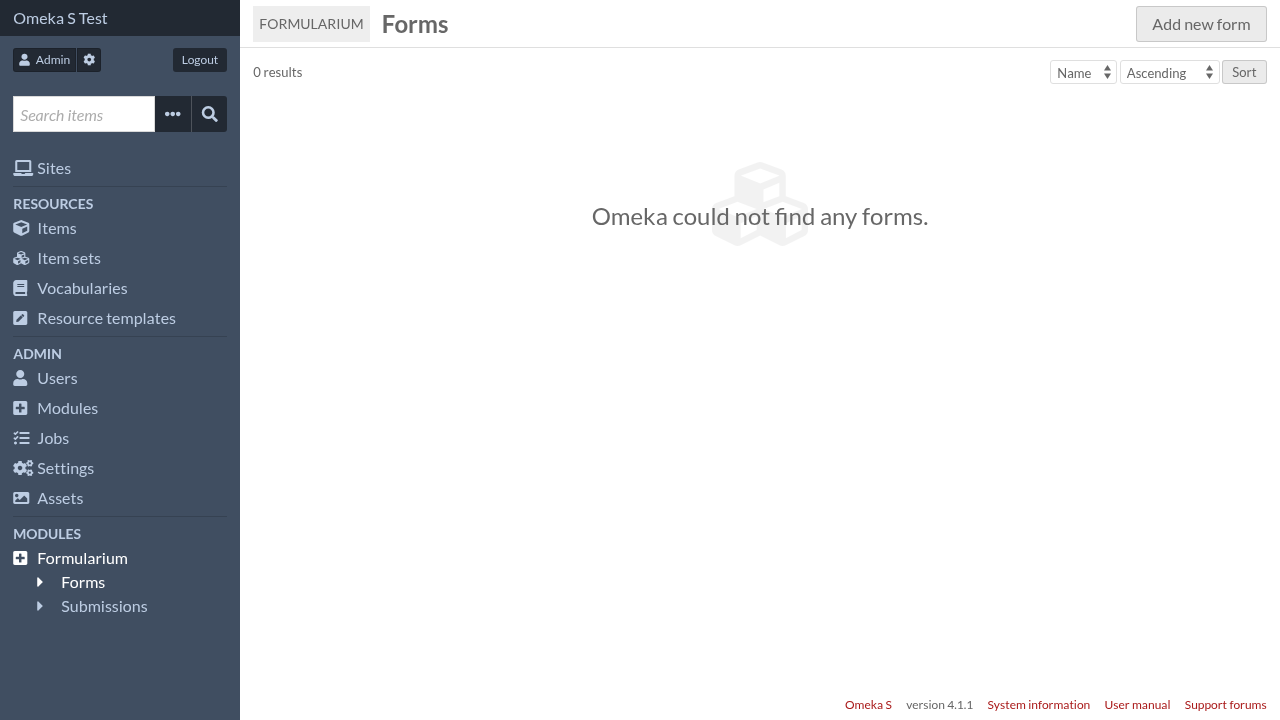
Then click on “Add new form”

Give it a name, then click on “Add a component” to add your first component.
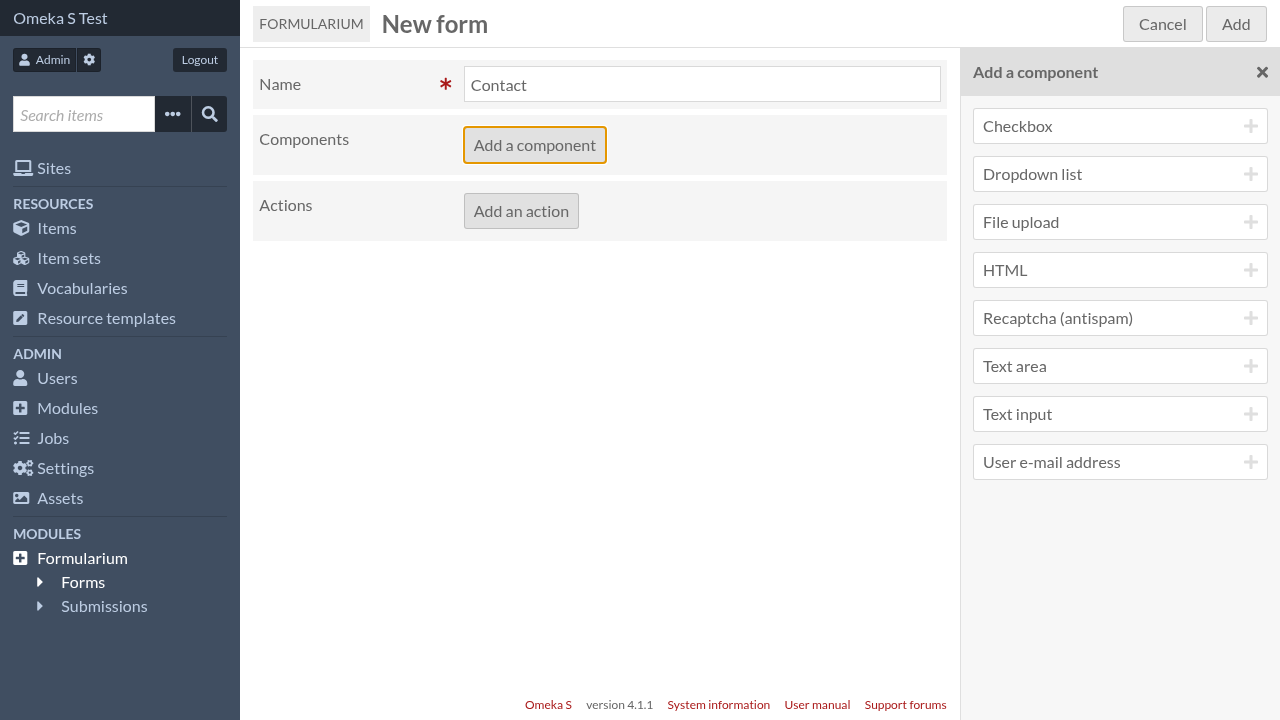
In the sidebar, select the type of component you want to add, for instance “User e-mail address”, and complete the component’s settings form.
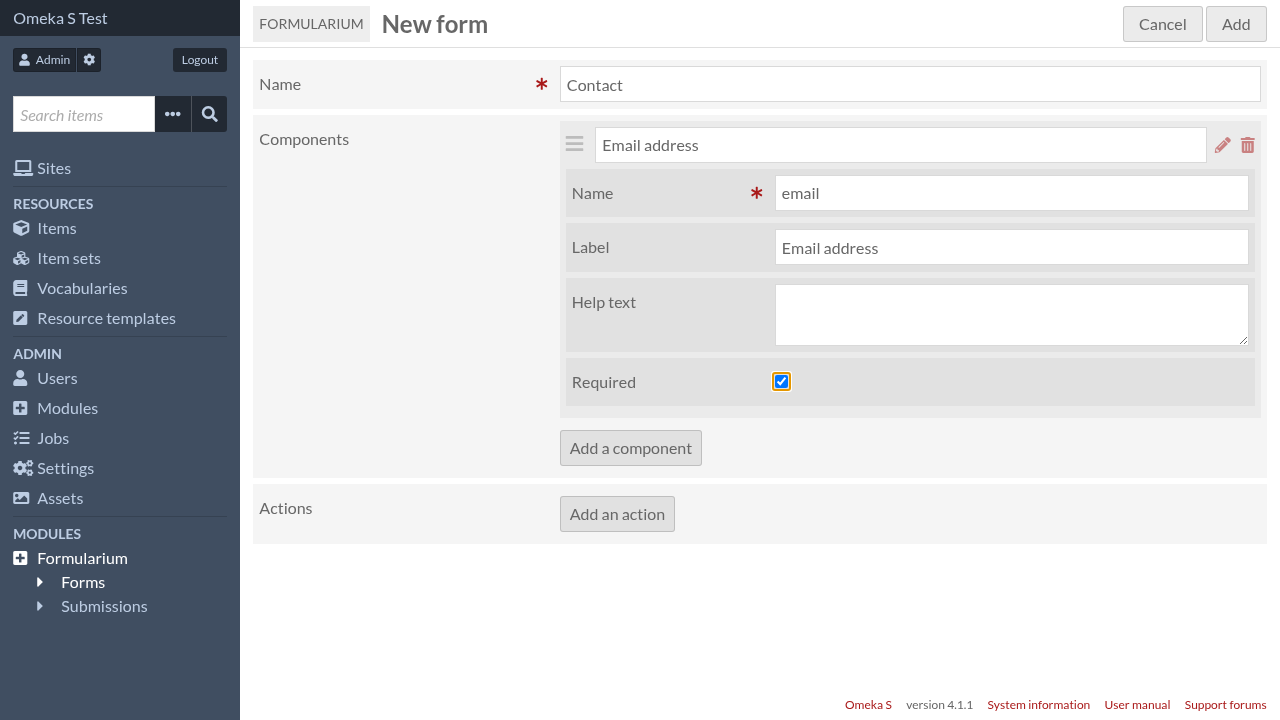
You can add as many components as you want and reorder them. You may also add actions. Actions are executed after a successful form submission.
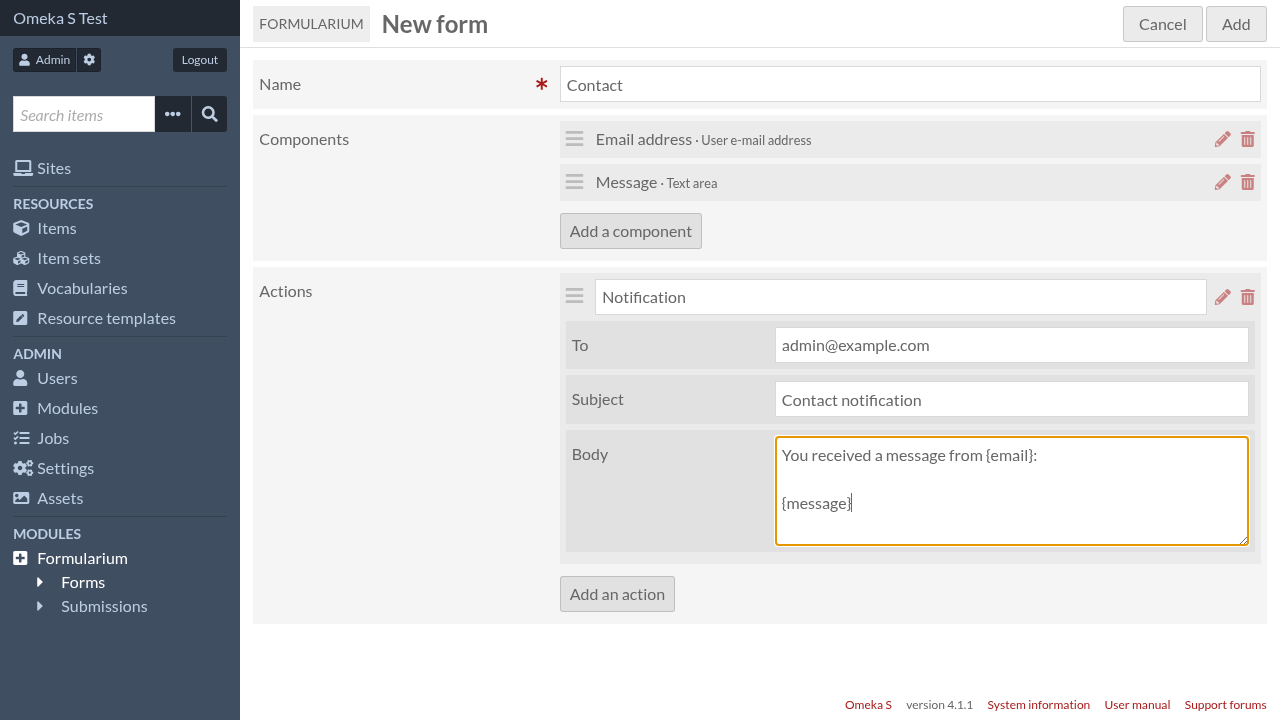
Once you’re done, click on “Add” to save the form.
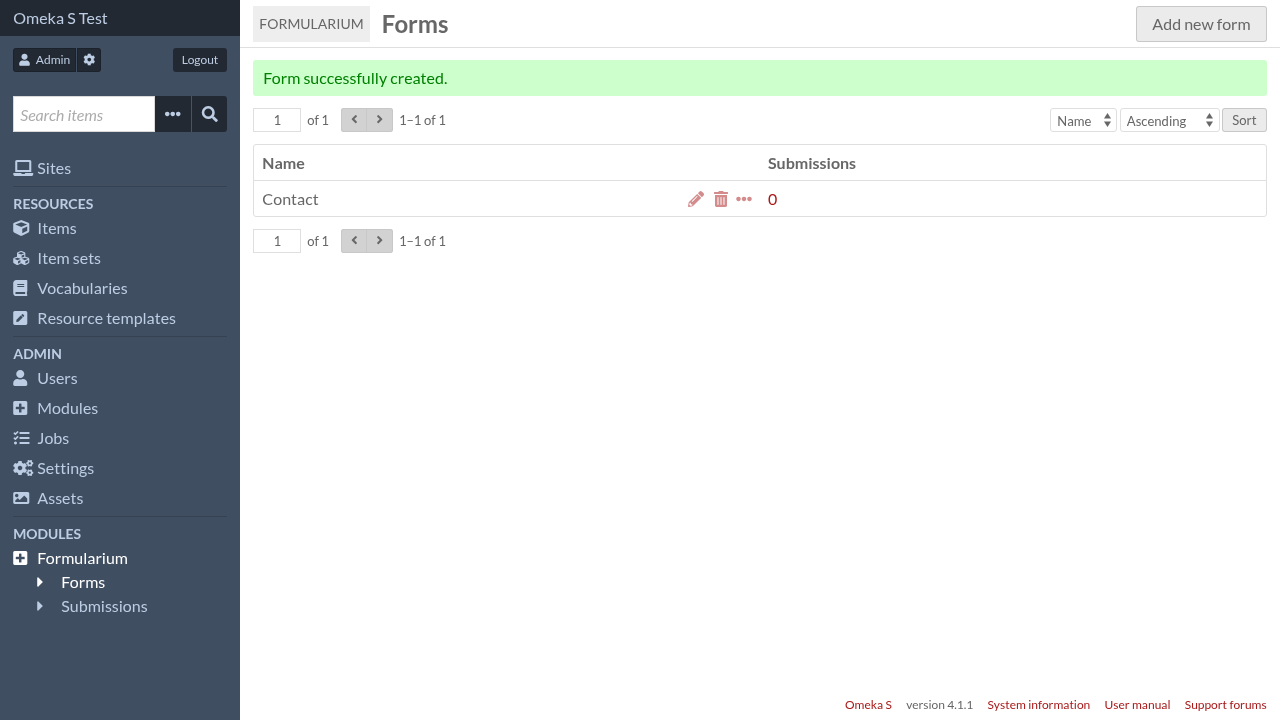
See Form components and Form actions to get more details about their settings.
Add the form to a site page
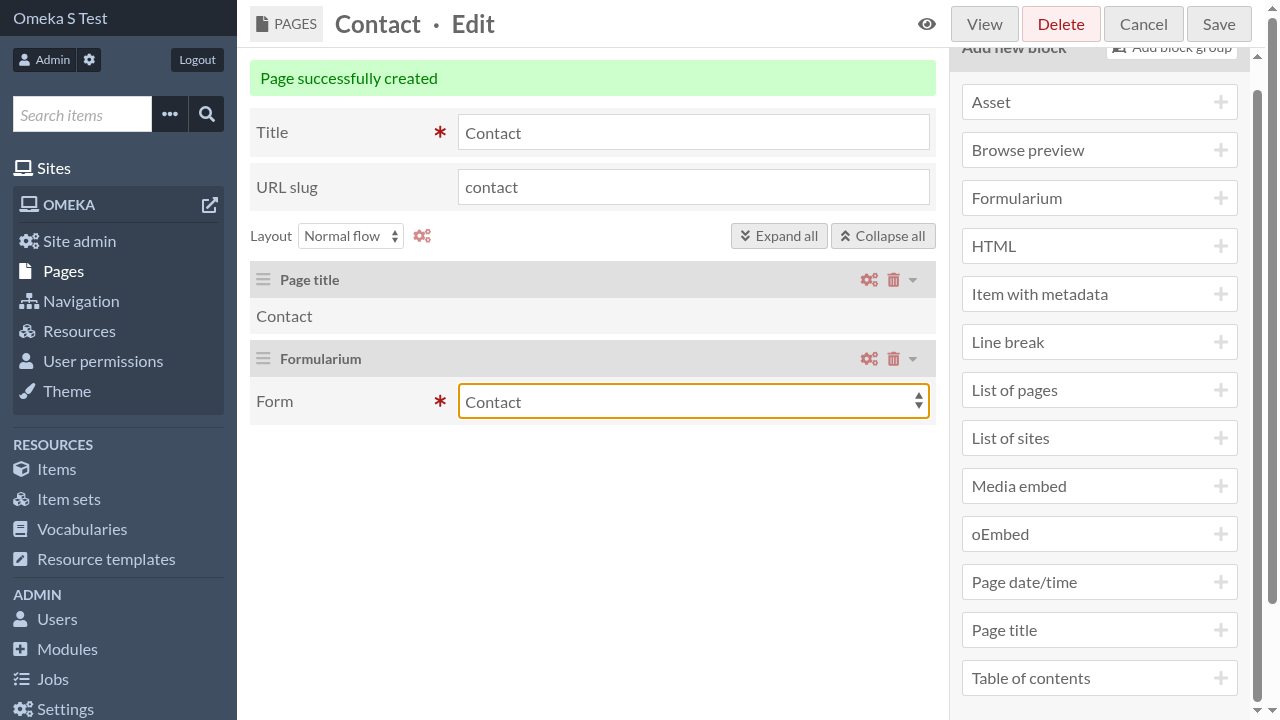
To make the form visible to your users, you must add the “Formularium” block to a site page, and select your form in the block settings.
The page will look like this (with the default theme):
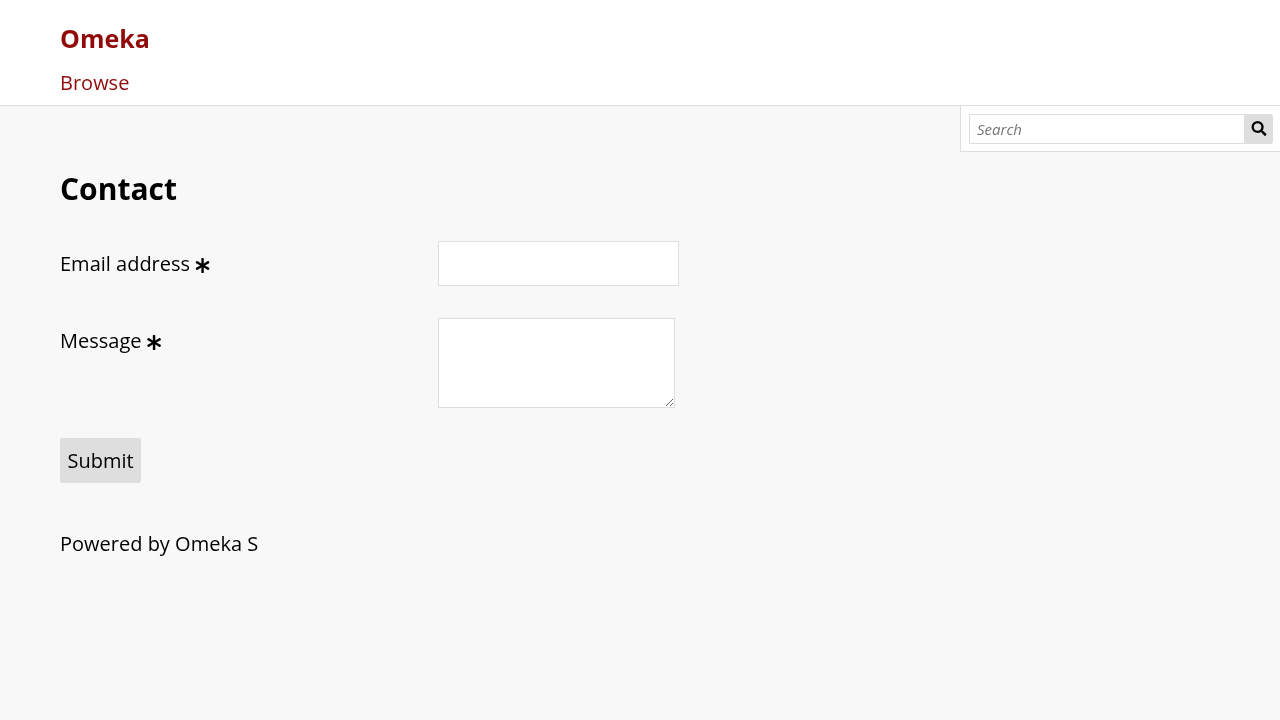
Form submissions can be viewed and managed in the form submissions page